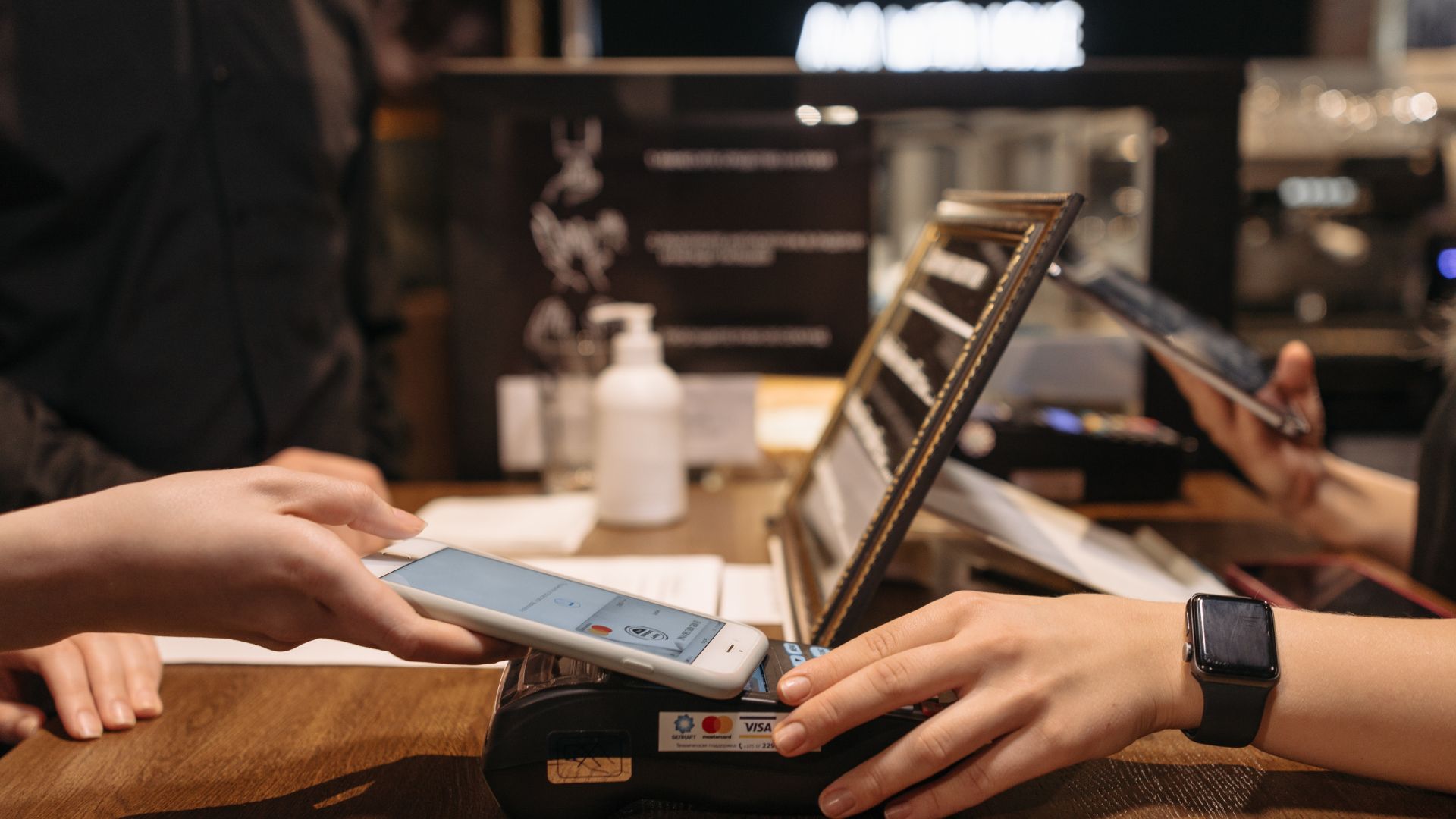
You can verify PayPal in the UAE with a virtual card by creating one in your name from a reputable issuer, ensuring the billing name and address match your PayPal profile exactly, and funding it with enough balance. Add the card under “Link a card,” then confirm the small temporary charge or 4‑digit code shown on the card statement or portal. Watch issuer restrictions, formatting, and verification holds; follow up with PayPal support if anything is rejected to learn more.
Quick Checklist: Verify PayPal With a Virtual Card in the UAE
1 simple checklist will help you confirm PayPal with a virtual card in the UAE quickly: choose a reputable provider that supports UAE residents, generate a virtual card with sufficient balance, and note the card number, expiry, and CVV.
Log into PayPal, add the virtual card under “Link a card”, and enter details exactly. Expect a small temporary charge for verification; check the virtual card’s transaction record for the 4-digit code or amount.
Enter that code in PayPal to confirm. If verification fails, try another virtual card or contact provider support.
Remember virtual card benefits like privacy and instant issuance, and weigh PayPal alternatives if repeated verification problems persist or your provider blocks small authorization charges.
What PayPal Requires to Verify a Card in the UAE
To verify a card with PayPal in the UAE, you’ll need to prove you own the card, usually by completing the small charge and confirming the code.
The card’s billing address must match the one on your PayPal account.
PayPal will also check that the card’s funding source is valid and has sufficient funds or credit.
Card Ownership Proof
When PayPal asks you to verify a card in the UAE, it’s checking that you actually own and can use the card you’ve added; you’ll usually be asked to provide a small charge code from your card statement, a photo or scan of the card (with some digits covered), and matching ID or a bank statement that shows your name and the card’s last four digits.
To prove card ownership, submit the requested small charge code into PayPal’s verification field, and upload clear images that show the card’s front with only the last four digits visible.
Include a government ID or bank statement that matches the name on the card.
Follow file format and size rules, and ensure details are legible so the verification process completes without delays.
Billing Address Match
After you’ve proven card ownership, PayPal will check that the billing address on your card matches the address on your PayPal account and supporting documents; this confirms the card is legitimately linked to you.
You’ll need billing accuracy to avoid verification delays, so make sure the street, building, and unit numbers match exactly. Use documents that show the same address format PayPal expects.
- Compare your virtual card’s billing address with your PayPal profile for exact matches.
- Provide utility bills or government IDs that reflect the same address for address verification.
- Update your PayPal account immediately if the virtual card issuer uses a different format.
- Re-submit corrected documents promptly if PayPal flags discrepancies.
Accurate, consistent details speed verification and reduce the chance of rejection.
Card Funding Source
1 key thing PayPal checks is whether the card you add is an actual funding source you control, so you’ll need to show the card is active, linked to your name, and able to process small transactions; you must also confirm the card accepts international and online payments.
When using a virtual card, demonstrate it’s issued in your name or tied to your account, can authorize the temporary micro-charge PayPal sends, and supports the currency you’ll use.
PayPal looks for consistent billing details, recent activity on the card, and a clear link between the card and your PayPal account.
Virtual card benefits include extra payment security, but you should ensure your provider lets PayPal verify charges and reveal the reference code needed to complete verification.
Bringing Order to Scattered Ad Budgets
Ad spend across half a dozen platforms used to land on one card and produce a statement no one could decode. A media buyer we trust gives every campaign its own card so he can read spend at a glance. When we asked how to get a virtual card built for that, he sent us to Qwikvcc. These days each ad account carries its own prepaid card with its own ceiling, and closing the books takes minutes. One small switch made our whole reporting process readable again.
Create a PayPal-Compatible Virtual Card
Set up a PayPal-compatible virtual card by choosing a card provider that supports UAE residents and generates a local-currency (AED) or widely accepted virtual card number you can link to PayPal.
Pick a reputable issuer, confirm they allow international merchant billing, and check fees. Understand virtual card benefits like spending limits, single-use options, and improved privacy compared with physical cards.
Consider PayPal alternatives if a provider can’t issue cards you can add.
- Verify provider supports UAE KYC and AED or major-currency issuance.
- Confirm card type: Visa/Mastercard virtual numbers are most accepted.
- Set sensible single-use or fixed-limit controls before funding.
- Save provider contact info and transaction logs for disputes.
Once created, you’ll be ready to add it to PayPal.
Add and Confirm a Virtual Card on PayPal
Link your virtual card to PayPal by adding it under Wallet, entering the card number, expiry, and CVV exactly as shown by your provider, and making sure the billing address matches what PayPal expects for UAE accounts.
After adding the card, PayPal will usually make a small temporary charge to confirm ownership; note the code or amount in your card provider’s portal and enter it on PayPal when prompted. This process activates virtual card benefits like disposable numbers and limited exposure, while keeping transactions separate from your main accounts.
If verification fails, double-check digits and expiration, then retry or contact your virtual card issuer. Remember that completing this step helps maintain PayPal security by proving card control without exposing your primary payment details.
Matching Billing Name and Address for Verification
Make sure the billing name on your PayPal account exactly matches the name registered with your bank or card issuer.
Use only the address you’ve officially registered with that bank or card — mismatched addresses can trigger verification holds.
If you add a virtual card, update its billing details to match your registered name and address before confirming.
Ensure Exact Name Match
When you apply for PayPal verification in the UAE, ensure the name on your PayPal account exactly matches the billing name on your bank card or utility bill; mismatched spellings, missing initials, or different order of names can trigger verification delays or rejections.
You should confirm every character, accent, and space to maintain name consistency and speed up identity verification. If your virtual card issuer allows custom billing names, set it to match your official ID and PayPal profile. Avoid nicknames or abbreviations.
- Check spelling against your passport or Emirates ID.
- Use full legal names—no nicknames or extra initials.
- Update PayPal immediately after any legal name change.
- Contact card issuer if the billing name differs and request correction.
Use Registered Address Only
Anyone verifying PayPal in the UAE should use the same address you’ve registered with your bank or utility provider, since PayPal checks both the billing name and billing address against official records; mismatches can delay or block verification.
Use the registered address as your billing address when adding your virtual card to PayPal. Don’t substitute a PO box, temporary address, or an address linked only to delivery services.
If your bank-issued statements or utility bills show a different format (Arabic vs. English, abbreviated vs. full), match the format PayPal and your bank use. Double-check spelling, apartment numbers, and emirate names before submitting.
Keeping the billing name and registered address consistent prevents verification failures and speeds up PayPal approval with your virtual card.
Update Virtual Card Details
Now that your billing address matches your bank records, update the virtual card details so the billing name and address on PayPal match exactly what appears on your bank or utility documents.
You’ll avoid verification delays by entering the same full name, spelling, and abbreviations PayPal will compare. Check the virtual card issuer’s dashboard, edit the cardholder name and billing address, then sync those changes to your PayPal account.
- Verify the exact name format used by your bank (initials, middle name).
- Copy the address line-for-line from a recent statement or utility bill.
- Save changes in the virtual card portal and note any propagation time.
- Confirm on PayPal by using the updated card for a small authorization.
This step also improves virtual security and reduces mismatches when you update card information.
Authorization Holds and Verification Codes Explained
Authorization holds and verification codes are two simple checks PayPal uses to confirm your UAE card or bank account before you can send or withdraw funds.
When you add a virtual card, PayPal may place a small authorization hold—typically a temporary charge of a few AED—that verifies the card is active and that you control it. You won’t be charged permanently; the hold drops off in a few days or appears as a refundable pending transaction.
For verification codes, PayPal either shows a code in your card or bank statement or sends one via SMS/email linked to your account.
You’ll enter that code in PayPal to complete verification. Keep an eye on statements and notifications so you can finish this step promptly.
Common Reasons PayPal Rejects Virtual Cards
When PayPal rejects a virtual card, it’s often because your card issuer has blocked certain online or international transactions.
You’ll also run into problems if the billing name or address you enter doesn’t match what the issuer has on file.
Check both issuer settings and your PayPal billing details before retrying.
Card Issuer Restrictions
One common reason PayPal rejects virtual cards is that your card issuer places restrictions on card types, usage, or geographic eligibility. Issuers often block virtual, prepaid, or non-EMV cards for online payment processors, restrict cross-border transactions, or require specific merchant categories that PayPal doesn’t present.
You should check virtual card compatibility and issuer policies before verifying. Contact your bank or card provider to confirm the card supports PayPal-style authorization and international merchant categories.
- Ask if virtual or prepaid cards are allowed for recurring and one-time online authorizations.
- Verify cross-border transaction permissions for UAE-to-global payments.
- Confirm EMV or network compliance (Visa/Mastercard) required by PayPal.
- Request temporary lifting of merchant-category or processor blocks if needed.
Mismatched Billing Details
Because billing details must match what PayPal expects, even small discrepancies on virtual cards can cause verification to fail.
You’ll need to confirm the name, address, and postcode on your virtual card match what PayPal has on file; mismatched information is a common trigger for rejection. Don’t use nicknames, abbreviated street names, or different country formats.
If your bank’s address format differs from your PayPal profile, update one to match the other so you avoid billing inconsistencies. Check for typos, incorrect apartment numbers, or outdated addresses before submitting.
If PayPal still flags the card, contact your virtual card provider to ensure they supply exact billing data, then retry verification with corrected details.
Fix Failed PayPal Verifications Quickly
If your PayPal verification fails, don’t panic — you can usually fix it quickly by checking the error, gathering the right documents, and retrying the steps PayPal specifies.
First, read the rejection message carefully; it often cites which PayPal policies you’ve tripped or notes virtual card limitations. Then collect matching ID, billing statements, and any proof PayPal requests.
- Confirm names, addresses, and card details match exactly.
- Review PayPal policies for unsupported card types or country restrictions.
- Upload clear scans or photos of ID and a bank statement showing your name.
- Retry verification after correcting errors; contact support if issues persist.
Follow these steps methodically, and you’ll resolve most verification failures quickly and cleanly.
UAE Virtual-Card Providers That Work With PayPal
When you need a virtual card that PayPal will accept in the UAE, pick providers that issue locally supported Visa or Mastercard virtual cards and allow verification with a physical billing address—these are the key compatibility requirements PayPal checks.
Popular UAE-friendly options include local banks offering virtual cards, fintechs like YAP and Tabby (when they provide card details), and international services that support UAE billing.
You’ll get virtual card benefits like safer online payments, spend controls, and quick issuance.
Before you register with any provider, confirm they reveal full card number, expiry, CVV, and a UAE billing address for PayPal’s verification flow.
If a provider won’t share those details, consider other PayPal alternatives or a different verified card source.
When a UAE Prepaid or Physical Card Is a Better Option
Virtual and fintech cards can be convenient, but you’ll want a UAE prepaid or physical card in scenarios where PayPal demands stronger proof of local residency, merchant holds require a bank-backed card, or you need in-person top-ups and cash withdrawals.
A prepaid card gives you prepaid advantages like easier acceptance for verification and predictable spend limits, while a physical card reduces flags from PayPal when linked to local bank details.
Be aware of physical limitations—lost or damaged cards need branch visits—but overall they offer tangible proof and ATM access you can’t get with most virtual options.
- Use prepaid cards for straightforward KYC and local address linkage.
- Choose physical cards when merchants reject virtual funding.
- Prefer bank-issued cards for dispute credibility.
- Keep documentation ready for card replacement.
Fees, Limits, and UAE Bank Policies to Watch
Because fees and spending caps vary widely across UAE banks and card types, you should check your bank’s specific schedule before linking a card to PayPal.
Review the fees structure for virtual or prepaid cards—activation, monthly, ATM and foreign-transaction fees can all affect verification and future use.
Confirm card limits for single transactions, daily spending and cumulative monthly caps; low virtual-card limits can block PayPal verification charges or cause declines.
Check bank policies about virtual cards tied to your main account, permissible merchant categories, and whether they allow small authorization holds from international platforms.
If your bank flags unfamiliar PayPal activity, verification might be reversed or blocked, so clarify dispute and hold procedures in advance.
Protect Your PayPal and Virtual Cards: Security Tips
After checking fees and limits with your bank, protect the accounts and cards you’ll use with PayPal by tightening security settings and monitoring activity.
You should enable two-factor authentication, use strong unique passwords, and register devices to reduce fraud prevention risks.
Keep virtual card details private and rotate numbers when possible to boost card security.
Verify your identity promptly if PayPal requests documents; timely identity verification prevents holds.
Regularly review transactions and set alerts so you spot suspicious activity early.
Encrypt backups of sensitive records and avoid public Wi‑Fi for financial actions to support data protection.
- Use 2FA and a password manager.
- Limit saved card info; use virtual numbers.
- Respond fast to identity verification requests.
- Monitor statements and set alerts.
If PayPal Blocks Verification: Next Recovery Steps
If PayPal blocks your verification, don’t panic — act quickly and methodically to restore access.
First, review any emails from PayPal for specific reasons and follow their instructions. Gather ID, virtual card statements, and proof of address to speed the process.
Next, contact PayPal support via the Resolution Center or phone; be polite, concise, and provide ticket numbers for reference. Ask clearly about the recovery process timeline and what evidence they require.
If initial contact stalls, escalate politely to a supervisor and document every interaction.
Monitor your account for messages and avoid repeated login attempts that might trigger further blocks.
If resolution fails, consider filing a complaint with local consumer authorities while preserving all correspondence for evidence.
Frequently Asked Questions
Can I Use a Virtual Card to Receive Paypal Payments in the UAE?
No, you generally can’t receive PayPal payments directly to a virtual card; you’ll need a linked bank or PayPal balance. You’ll still enjoy virtual card benefits for spending, and PayPal security protects your account and transactions.
Will Virtual Cards Affect My Paypal Account Verification Tier or Limits?
Ironically, yes — virtual cards can complicate your verification process, but they won’t magically weaken account security if you follow PayPal’s rules. You’ll need additional documentation for higher tiers and to lift limits.
Can I Link Multiple Virtual Cards to One Paypal Account?
Yes—you can link multiple virtual cards to one PayPal account, but availability varies by issuer. You’ll enjoy virtual card benefits like improved security and spending control, so use multiple card management tools to track and organize them.
Do Virtual Cards Expire and Break Paypal Subscriptions?
Yes — virtual cards expire and can break PayPal subscriptions; you’ll need to update details to keep things running smoothly, since virtual card security changes and expired numbers disrupt subscription continuity, so don’t let it catch you off guard.
Will Using a Virtual Card Trigger Paypal Account Review or Freezes?
Yes — using a virtual card can sometimes trigger PayPal account review or freezes if it alters account security signals or unusual transaction history; you should monitor activity, keep verification updated, and contact support promptly if flagged.
Final words
You can verify PayPal with a virtual card in the UAE if the card details match your PayPal profile and the issuer supports international merchant verification. Follow the steps, confirm the tiny charge, and keep billing name/address consistent. Interesting fact: over 60% of UAE residents used digital wallets or cards in 2024, so virtual-card verification is becoming a practical, widely adopted option for secure online payments.
Leave a Reply